Prepare for The Unix Shell
Thursday, August 27, 2026
6:00–9:00 PM Central Time
Bruner Hall, Room 126
No previous command-line experience is required. Please complete the steps below before the workshop begins.
What to bring
- A laptop running macOS, Windows, or Linux
- Your laptop’s charging cable
Complete these steps before the workshop
- Follow the operating-system instructions below to confirm that you have access to Bash.
- Download
shell-lesson-data.zip. - Move the downloaded ZIP file to your Desktop.
- Extract the file. You should have a folder named
shell-lesson-dataon your Desktop. - Complete the pre-workshop survey. If you have completed this for a previous workshop this semester, you may receive an error, in that case, this step is finished.
- Review The Carpentries Code of Conduct. All workshop participants are expected to follow this Code of Conduct.
Operating-system instructions
Windows
For this workshop, we recommend Git Bash, which is installed with Git for Windows.
Check whether Git Bash is already installed
- Open the Windows Start menu.
- Search for Git Bash.
- If Git Bash opens, you are ready. You do not need to reinstall it.
Install Git Bash
If Git Bash is not already installed:
- Download Git for Windows.
-
Run the installer. Keep the default selections except for the following screens:
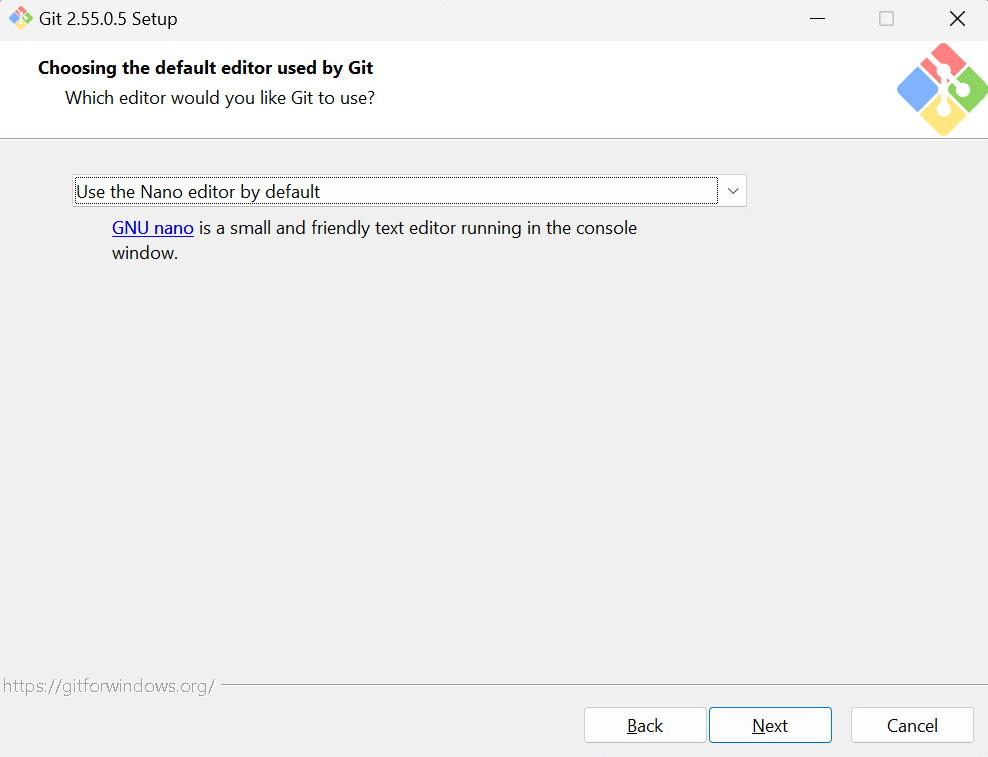
- On Choosing the default editor used by Git, select Use the Nano editor by default.
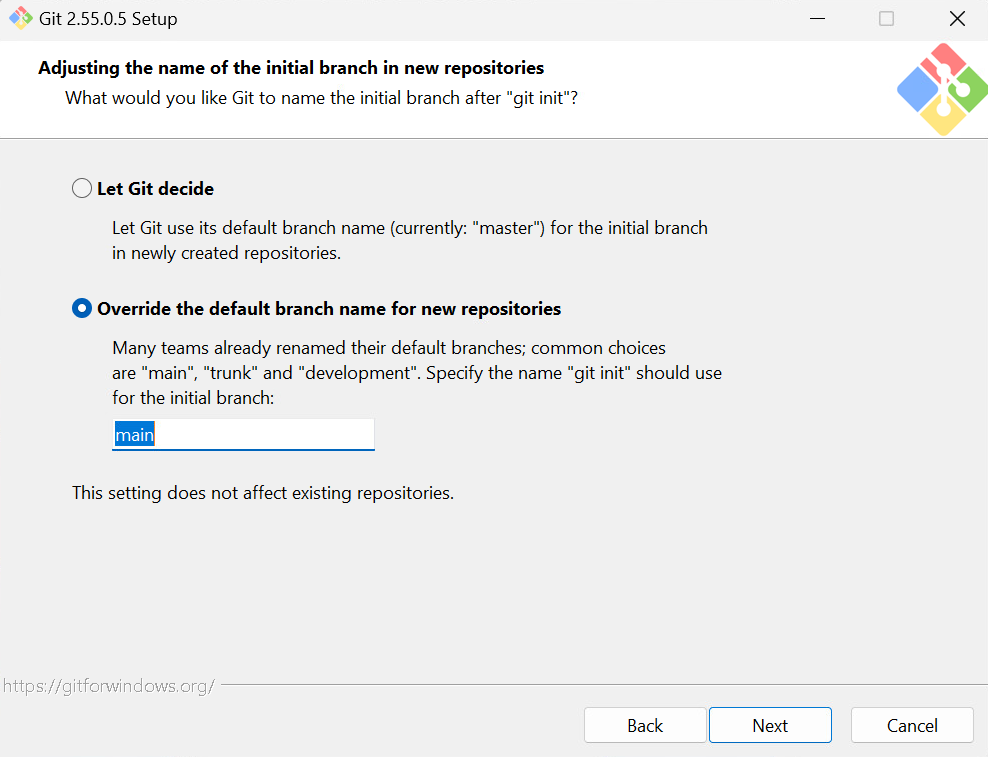
- On Adjusting the name of the initial branch in new repositories, select Override the default branch name for new repositories and enter
main.
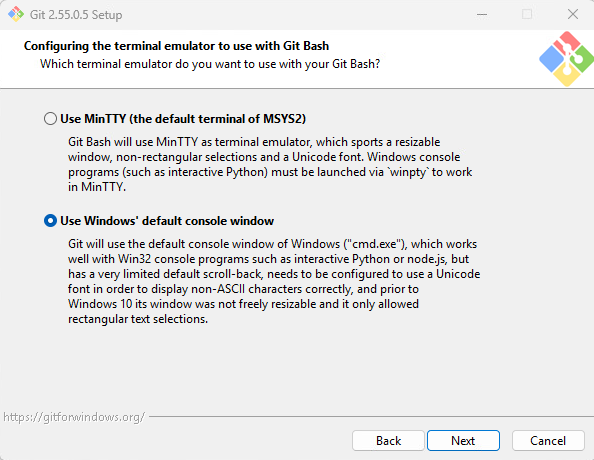
- On Configuring the terminal emulator to use with Git Bash, select Use Windows’ default console window.
This provides better compatibility with interactive programs such as Python that may be used in later workshops.
- Continue through the remaining screens using the default selections, and then select Install.
- When installation finishes, open the Windows Start menu and launch Git Bash.
If your Tennessee Tech-managed computer prevents installation, contact the ITS Help Desk, visit our open office hours, or bring the computer to the workshop and arrive early.
Already use WSL? You may use an existing WSL installation if you are comfortable with it, but file paths may differ from those demonstrated during the workshop. Our Windows demonstrations and support will use Git Bash.
macOS
macOS already includes the software needed for this workshop.
- Open Terminal from Applications → Utilities, or search for it with Spotlight.
- At the prompt, type
bashand press Return.
Linux
Linux normally includes Bash or another compatible Unix shell.
- Open your preferred terminal application.
- Type
bashand press Enter.
Confirm that Bash works
Open your shell application and enter:
bash --version
You should see version information beginning with GNU bash.
Also confirm that your Desktop contains the extracted folder:
shell-lesson-data
If both checks succeed, you are ready for the workshop.
Need help? Need help before the workshop? Bring your laptop to our open office hours from 11:00 AM–12:00 PM on Tuesdays and Thursdays in Clement Hall, Room 218, or join office hours through Microsoft Teams. If you still need assistance on the workshop date, bring your laptop and arrive a few minutes early.